


Most SEO advice sounds like this: “Build high-quality backlinks. Create comprehensive content. Optimize for Core Web Vitals.”
Cool. That’ll take you 6 months and requires technical expertise you don’t have.
Here’s what actually happens: You get overwhelmed. You do nothing. Your site still doesn’t rank.
So let me give you 5 SEO fixes you can knock out in one afternoon. No coding. No expensive tools. Just stuff that actually improves your rankings.
I’ve tested these on dozens of sites in Northwest Arkansas. They work.
Fix #1: Get Your Heading Structure Right (30 Minutes)
What This Means
Your page has headings: titles, subtitles, section headers. Behind the scenes, they’re coded as H1, H2, H3, H4, etc.
Google uses these to understand what your page is about and how information is organized.
Most websites mess this up completely.
The Common Mistakes
I audited a website last month. Their homepage had:
- Three H1 tags (you should only have ONE)
- H4 tags before H2 tags (hierarchy broken)
- Random headings styled to look big but coded as regular paragraphs
Google couldn’t figure out what the page was actually about.
The Right Structure
One H1 per page – Your main topic/title
Multiple H2s – Your main sections
H3s under H2s – Subsections within main sections
H4s under H3s – If you need to go deeper
Think of it like an outline:
H1: How to Plan a Church Event
H2: Before the Event
H3: Set Your Budget
H3: Pick a Date
H2: During the Event
H3: Registration Process
H3: Managing Volunteers
How to Fix It
WordPress: When editing a page, click on any heading. Look at the block settings on the right. It’ll say “H1”, “H2”, etc. Make sure they follow proper hierarchy.
Squarespace: Click on a heading, look at the dropdown that appears. Choose the right heading level.
Custom site: View page source (right-click → View Page Source). Search for <h1>, <h2>, etc. Make sure structure makes sense.
How to Check If It Worked
Use the free Detailed Chrome extension. Install it, visit any page on your site, and click the extension icon. It shows your heading structure as an outline. Should look logical, not random.
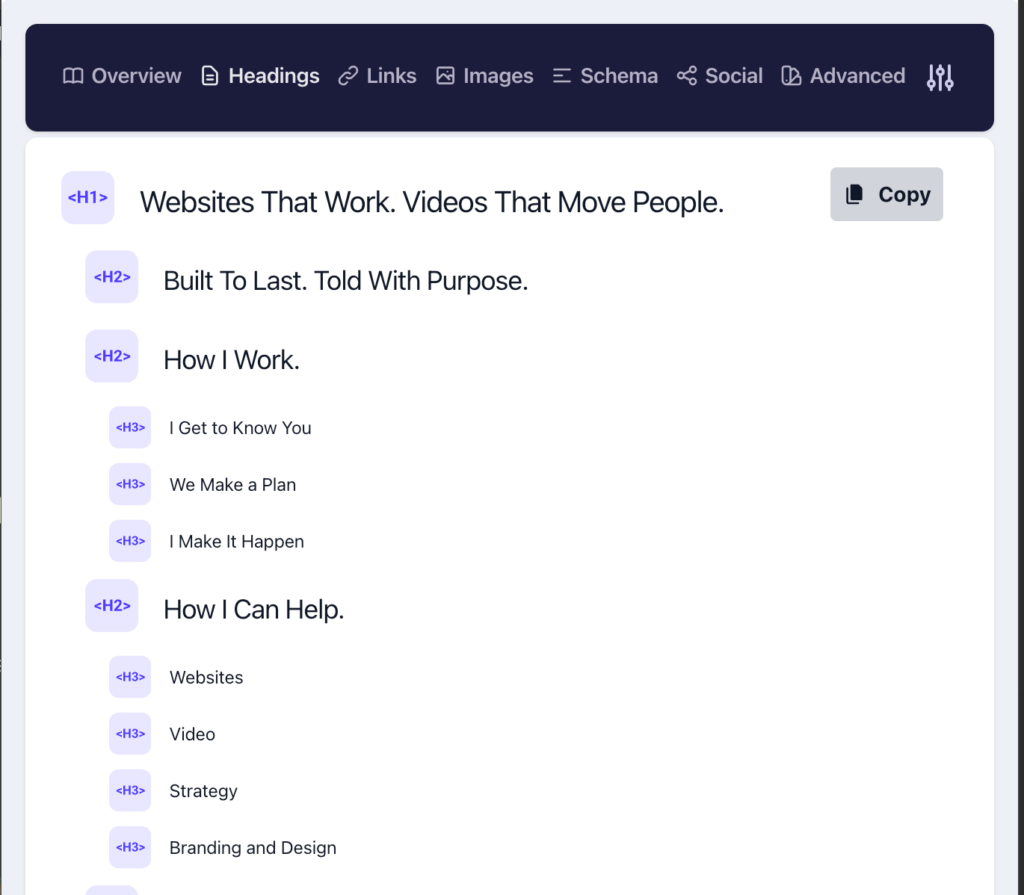
Fix #2: Add Alt Text to Every Single Image (45 Minutes)
What This Means
Every image on your site should have “alt text”—a text description of what’s in the image.
Two reasons this matters:
- Accessibility: Screen readers for visually impaired users read alt text aloud
- SEO: Google can’t “see” images, so it reads alt text to understand what they show
The Common Mistake
Most images have either:
- No alt text at all
- Auto-generated garbage like “IMG_2847.jpg”
- Keyword-stuffed nonsense like “best plumber Bentonville affordable plumbing services”
How to Write Good Alt Text
Bad: “image” or “photo”
Bad: “IMG_2847”
Bad: “church website design Northwest Arkansas affordable web designer”
Good: “Modern church sanctuary with wooden pews and natural lighting”
Good: “Team meeting around conference table discussing project timeline”
The rule: Describe what’s in the image like you’re telling someone who can’t see it. 10-15 words. Natural language. If relevant keywords fit naturally, include them—but don’t force it.
How to Fix It
WordPress: Click on an image, look at the right sidebar. There’s an “Alt text” field. Fill it in for every image. To find all images missing alt text: Use “Media Library” → click on each image.
Squarespace: Click on image → Edit → Click the settings icon → Add alt text in the “Content” tab.
Quick check: The Detailed Chrome extension also highlights images missing alt text. Click the extension, scroll to the “Images” section—it’ll show which ones need attention.
How to Check If It Worked
Right-click any image → “Inspect” → Look for alt="your description here" in the code. Or use Detailed extension for a quick overview of all images on the page.
Fix #3: Speed Up Your Site (The Low-Hanging Fruit) (60 Minutes)
What This Means
If your site takes over 3 seconds to load, 40% of visitors leave before seeing anything. Google also ranks faster sites higher.
You don’t need to optimize everything. Just fix the obvious stuff.
The Quick Wins
A. Compress Your Images
Most sites have images that are 5-10x larger than they need to be.
That hero image? It’s 4.2 MB. It should be under 200 KB.
Free tool: TinyPNG.com or Squoosh.app
- Download your large images
- Upload to TinyPNG
- Download compressed versions
- Replace old images with new ones
Result: Images load 80-90% faster, no visible quality loss.
B. Use Quality Hosting with Server-Side Caching
This is the single biggest factor in site speed that you control.
Cheap shared hosting ($5/month plans) means your site shares a server with hundreds of other websites. When they get traffic, your site slows down. You have no control over it.
What to look for in quality hosting:
- Server-side caching built in – Saves pre-built versions of your pages so they load instantly
- SSD storage (not old spinning hard drives)
- CDN included – Delivers your site from servers close to your visitors
- Managed WordPress hosting – If you’re on WordPress, hosts that specialize in it perform better
Good hosting typically costs $20-50/month. That might sound like a lot compared to $5/month budget hosting, but the speed difference is dramatic.
Real example: I moved a client from $8/month shared hosting to quality managed hosting. Same site, no other changes. Load time went from 4.7 seconds to 1.8 seconds.
If you’re on WordPress: Look for hosts that specifically mention “server-side caching,” “LiteSpeed,” or “Redis caching” in their features. These handle caching at the server level, which is far more effective than plugin-based caching.
C. Remove Unused Plugins (WordPress Only)
Every plugin adds code. Some load on every page even when not needed.
Action: Go through your plugin list. If you’re not actively using it, deactivate and delete it.
How to Check If It Worked
Use Google PageSpeed Insights (free). Test your site before and after. Should see improvement in “Time to Interactive” and overall score. Aim for 90+ on both mobile and desktop.
Fix #4: Write Actual Meta Descriptions (45 Minutes)
What This Means
Meta descriptions are the 2-3 line summaries that show under your page title in Google search results.
They don’t directly affect rankings, but they DO affect click-through rate. Better description = more clicks = better rankings over time.
The Common Mistake
Most sites either:
- Have no meta description (Google auto-generates from random page text)
- Use the same generic description on every page
- Write descriptions for themselves, not searchers
Bad auto-generated: “Home About Services Contact Copyright 2023 All Rights Reserved”
Bad generic: “Welcome to our website where we provide quality services”
Good: “Free church website audit. I’ll show you exactly what’s keeping visitors from contacting you—takes 15 minutes, no obligation.”
How to Write Good Meta Descriptions
Formula: [What you offer] + [Benefit/outcome] + [Call to action or qualifier]
Keep it 150-160 characters (Google cuts off after that)
Include your target keyword naturally (Google bolds it in search results)
Make it compelling – This is your ad copy in search results
Examples:
| Page Type | Good Meta Description |
|---|---|
| Homepage | Custom WordPress websites for Northwest Arkansas churches and nonprofits. Launch in 14 days, $2,397-$4,897. Based in Bella Vista. |
| Service Page | Church website design built for growth, not just online presence. Mobile-optimized, SEO-ready, designed to turn visitors into attenders. |
| Blog Post | Your church website gets traffic but zero visitors on Sunday. Here are the 5 conversion killers I see on every audit—and how to fix them. |
How to Fix It
WordPress: Most SEO plugins add a meta description field when you’re editing a page. Look for it below your content editor. If you’re using The SEO Framework, scroll down to find the “Social Meta Settings” section—the description field is there.
Squarespace: Pages → Click page → Settings → SEO → Page Description
Priority: Start with homepage, then your top 5 most-visited pages (check Google Analytics or Google Search Console).
Quick check with Detailed: The Detailed Chrome extension also shows your meta descriptions. Click the extension and look at the “Meta” section to see what’s currently set for any page.
How to Check If It Worked
Google your page title. Look at the description that shows in search results. Should be your custom description, not random text. Or use Detailed extension for instant verification.
Fix #5: Add Internal Links Between Related Pages (30 Minutes)
What This Means
Internal links are links from one page on your site to another page on your site.
They help Google understand:
- How your pages relate to each other
- Which pages are most important
- What topics you’re an authority on
They also keep visitors on your site longer (good for SEO).
The Common Mistake
“Orphan pages”—pages with no internal links pointing to them. Google finds them eventually, but they rank lower because your own site doesn’t seem to think they’re important.
How to Do It Right
The strategy: When you mention a topic you’ve written about elsewhere, link to that page.
Example: You’re writing about church website mistakes. You mention “slow page speed.” You have a blog post about page speed. Link to it: “slow page speed (here’s how to fix it)”
Rule of thumb: 2-5 internal links per page/post. Don’t force it, but look for natural opportunities.
Where to Add Them
- In blog posts: Link to related blog posts and service pages
- On service pages: Link to relevant blog posts as resources
- In navigation: Make sure important pages are in your menu
- In footers: Link to key service pages
How to Fix It
Quick action plan:
- List your 10 most important pages (services, popular blog posts)
- For each one, ask: “What other pages on my site relate to this?”
- Go into each page and add 2-3 links to related pages
- Use descriptive link text (not “click here”—use “church website design services”)
WordPress/Squarespace: Highlight text → Click link icon → Search for your page → Insert link
How to Check If It Worked
Use Screaming Frog SEO Spider (free up to 500 URLs). It’ll show you which pages have no internal links pointing to them (orphan pages). Or manually check by looking at your site structure—every important page should be linked from at least 2-3 other pages.
Bonus Fix: Set Up Google Search Console (15 Minutes)
If you haven’t done this yet, stop everything and do it now.
Google Search Console is a free tool from Google that shows you:
- Which keywords you’re ranking for
- How many people see your site in search results
- Which pages are indexed (or not indexed)
- Technical issues Google found on your site
It’s also how you submit your sitemap to Google so your pages get indexed faster.
How to Set It Up
- Go to search.google.com/search-console
- Click “Start Now” and sign in with your Google account
- Click “Add Property” and enter your website URL
- Verify ownership (easiest method: upload an HTML file to your site, or use DNS verification)
- Once verified, go to “Sitemaps” in the left sidebar
- Enter your sitemap URL (usually
yourdomain.com/sitemap.xmlfor WordPress) - Click “Submit”
WordPress sitemap: Most SEO plugins (including The SEO Framework) automatically generate a sitemap. Check yoursite.com/sitemap.xml to confirm it exists.
Squarespace: Sitemap is automatically available at yoursite.com/sitemap.xml
Why This Matters
Without submitting your sitemap, Google might take weeks or months to find and index new pages. With a sitemap submitted to Search Console, Google knows exactly what pages exist and can index them within days.
Plus, Search Console shows you actual data about your SEO performance. You can track whether these fixes are working by watching your impressions and clicks increase over time.
The One-Afternoon SEO Checklist
| Fix | Time | Difficulty | Impact |
|---|---|---|---|
| Heading Structure | 30 min | Easy | MEDIUM – Better page understanding |
| Image Alt Text | 45 min | Easy | MEDIUM – Accessibility + image SEO |
| Page Speed | 60 min | Easy-Medium | HIGH – Affects rankings + conversions |
| Meta Descriptions | 45 min | Easy | MEDIUM – Improves click-through rate |
| Internal Links | 30 min | Easy | MEDIUM – Better site architecture |
| Google Search Console | 15 min | Easy | HIGH – Track progress + faster indexing |
| TOTAL | 3.75 hours |
What Happens After You Fix These
Don’t expect to rank #1 overnight. SEO takes time.
But here’s what I typically see 30-60 days after these fixes:
- 5-15% improvement in Google PageSpeed score
- Better accessibility scores (check with Detailed extension)
- Slight improvements in rankings for existing keywords
- Lower bounce rate (people stay on site longer)
- Google Search Console shows more pages indexed properly
- Actual data to track progress (thanks to Search Console)
Real example: A Bentonville business fixed these 5 things in one afternoon. After 60 days, their average search position improved from 14.2 to 9.8 for their target keywords. Not page 1 yet, but way closer. Google Search Console showed the progress happening in real-time.
The Honest Truth About DIY SEO
These fixes help. They’re worth doing. But they’re foundation-level stuff.
Think of it like this: If your house has a leaky roof, broken windows, and cracks in the foundation, fixing those is critical. But it doesn’t make your house beautiful or valuable—it just makes it functional.
Same with SEO. These fixes get you to “functional.” They remove the obvious problems holding you back.
Getting to page 1 of Google? That requires ongoing content, strategic keyword targeting, technical optimization, and consistent effort over 6-12 months.
But start here. Fix the obvious stuff. Track your progress in Google Search Console. Then decide if you want to keep going yourself or bring in help.
Questions About Your Site?
If you went through these fixes and found issues you don’t know how to solve, or you’re not sure if you did them right, I offer Free Home Page Audits, so you know right away what needs to be done on your most important page. Feel overwhelmed and want a partner that can take care of all this and more? Get a free instant quote on any of my services.
I’m happy to take a quick look and point you in the right direction—no sales pitch, no obligation.
Based in Bella Vista, serving businesses, churches, and nonprofits throughout Northwest Arkansas
Frequently Asked Questions
How long until I see results from these SEO fixes?
Some improvements are immediate (page speed, accessibility). SEO ranking improvements typically take 30-90 days. Google needs time to recrawl your site, process changes, and adjust rankings. Use Google Search Console to track progress—you’ll see impressions and clicks data update within days, but meaningful ranking changes take 2-3 months.
Do I need to do all 6 fixes, or can I just pick one?
You can do them individually, but they work better together. If you only have time for one, start with Google Search Console setup (so you can track everything) then page speed (biggest immediate impact). Add the others as you have time. The Detailed Chrome extension makes checking headings, alt text, and meta descriptions quick and easy.
Will these fixes work for Wix or Squarespace sites?
Yes. Heading structure, alt text, meta descriptions, internal links, and Google Search Console work the same on any platform. Page speed optimization is more limited on Wix/Squarespace (you can’t control hosting), but image compression still helps significantly. The Detailed extension works on any platform for quick audits.
What if I fix these things and still don’t rank?
These fixes remove common problems, but they’re not a complete SEO strategy. If you’re in a competitive industry or targeting competitive keywords, you’ll also need: regular content publishing, backlinks, local SEO optimization, and ongoing technical maintenance. Google Search Console will show you exactly which keywords you’re gaining traction on—use that data to guide your next steps.
Is expensive hosting really necessary for good SEO?
Yes, if you’re serious about ranking. Page speed is a direct ranking factor. Quality hosting ($20-50/month with server-side caching) typically loads 2-3x faster than budget hosting ($5-10/month shared servers). That speed difference directly impacts rankings and conversions. It’s one of the highest-ROI investments you can make for your site.